
Asset Creation - Part 3: High Resolution Mesh
Once the block mesh plus has been approved, it's time to refine it into a high quality high resolution mesh. There are multiple ways to do this depending on the asset you're trying to make: hard surface models tend to rely on subdivision surface workflows and geometry nodes, while organic forms tend to rely on sculpting. We should use whatever combination of techniques are appropriate.
Goals
- Create a high resolution mesh that will eventually be used to bake normals and other mesh maps.
- Save the file as a new file with the "_high" suffix: asset_high.blend
1: Create a new file for the high resolution mesh
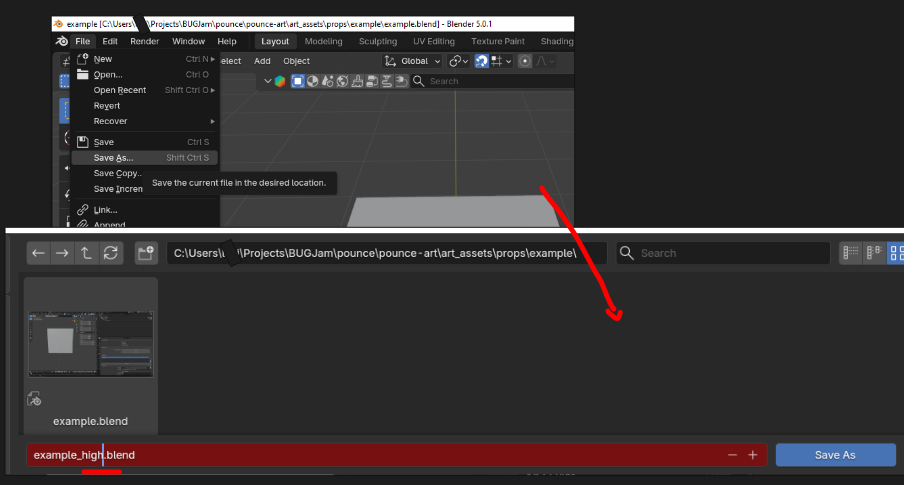
Starting from your blockout+ blend file - go to file > save as> and add '_high" to the file name, this creates a dupicate working file
2: Increase Resolution
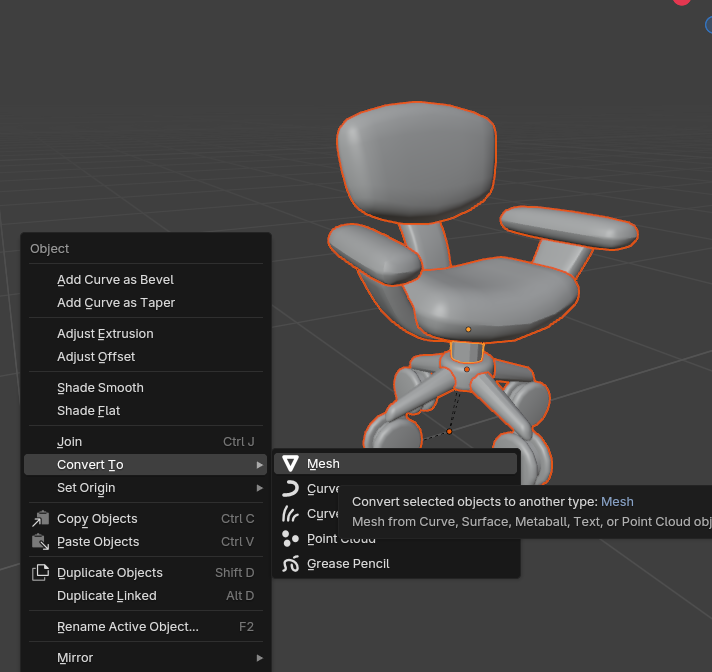
- start by applying all current modifiers to your mesh (excluding mirrors + instances)
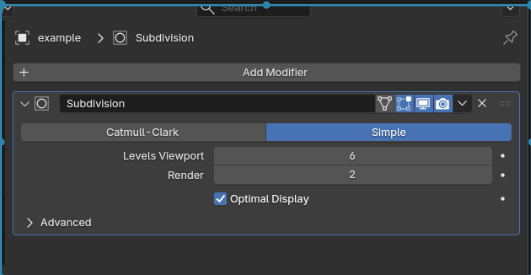
- apply a subdivision modifier with 4-6 iterations, this increases the polygon count to a level that is appropriate for sculpting (if you find you need more when you are sculpting, just repeat this step with 1 iteration)
- apply subdivision modifier + switch to sculpting workface
Hit ctrl + S frequently while working on the high poly mesh + sculpting! it is a very likely time for blender to crash and you don't want to lose work! when you are done, only the most recent save will get pushed to the repo so dont worry!
Polygons:
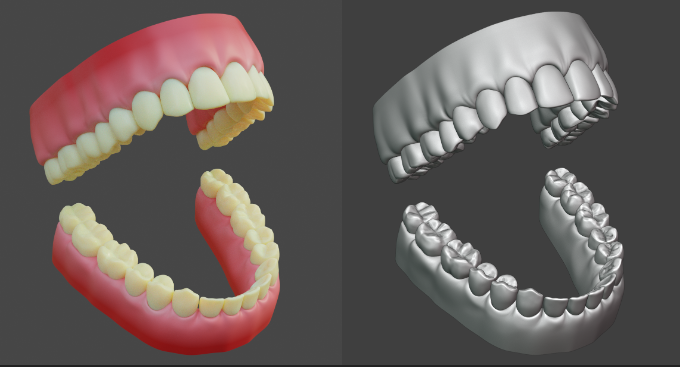
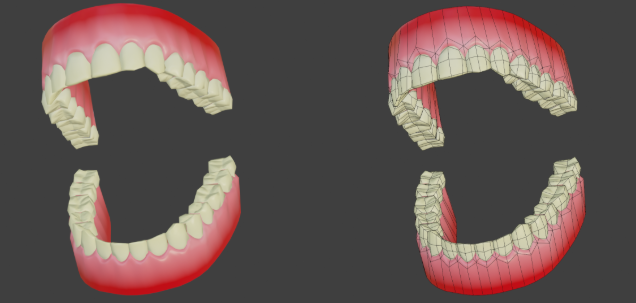
We are going to be using a high - low polygon workflow, which means you can go pretty high when working on the details of your model! Please see Xury's punk character series to understand this workflow in depth. Included example is this pair of teeth by Xury- see the difference in the original sculpt vs final game model
Checklist:
- Your .blend file is saved in the correct location in the git repository
- Your .blend file is clearly named
- Your model is made to an accurate and reasonable scale
- Your model's origin point is set to the world origin, and is the lowest center point of your mesh
- Everything in your outliner is clearly named
- All transforms have been applied (scale / rotation / location)
STEPS
- Name your .blend file and save it to the correct location for GIT repo
- Make a 'greybox' of your model that shows the correct dimensions + scale
- Commit your greybox to the GIT repo and get the greenlight on file handling
- Blockout your model in more detail (not fine detail), think of it as a rough sketch of what you will be making
- Commit your blockout to the GIT repo and get greenlight on design
- Refine + detail your model/ finish the sculpting/ modeling phase
- Commit final sculpt to GIT repo and get greenlight
- Use blenderkit to add textures to your model
- Commit textured model and get greenlight to finalize asset
- Create a new .blend file and link in the high poly version of your asset. Name guitar_low.blend, and save it to the correct location for the GIT repo
- Create the low-poly version of your mesh using retopology workflow
- UV Unwrap your low-poly mesh and optimize texture space
- Commit Low poly model + UV Map to GIT repo to get greenlight for baking
- Bake your high poly mesh to your low poly mesh (PBR texture set- normal map / albedo / AO /metallic / roughness)
- Commit and finalize / hand off low poly version for rigging + game integration